
Solutions to Cross-Origin Issues in uniapp/Vue Frontend Development
Disclaimer: This article is provided for technical education only. It is not investment, legal, or business advice. When applying CORS or proxy configurations, always follow security best practices and comply with local regulations and your organization’s policies.
Solutions to Cross-Origin Issues in uniapp/Vue Frontend Development

What Is Cross-Origin, and Why Does It Matter?
Cross-origin is a browser-level security concept. It happens when JavaScript running on one origin tries to request a resource from a different origin. For example, if a page hosted on site A makes an AJAX call to site B, the browser treats that as a cross-origin request.
Two URLs share the same origin only when they match in all three of these:
- Protocol: http and https are considered different origins.
- Domain name: including subdomains such as api.example.com and www.example.com.
- Port number: localhost:8080 and localhost:3000 are different origins.
Native apps, mini-programs, and other non-H5 platforms generally do not hit cross-origin restrictions because they are not running inside a browser sandbox. The main exception is iOS WKWebView, which is used in 5+App, uni-app’s web-view component, and renderjs. In those cases, WKWebView’s same-origin rules can still block requests. DCloud has a dedicated explanation on this edge case: https://ask.dcloud.net.cn/article/36348.
Inside a standard uni-app project, ordinary JavaScript logic in the App does not run inside a WebView, so it usually avoids CORS. The problem appears most often when you build an H5 application with a separate front-end and back-end. If the front-end bundle and the API are not served from the same origin, the browser will block the request and show a CORS error.
Calling UniCloud Cloud Functions from an H5 Page
When an H5 page calls a UniCloud cloud function, the request is cross-origin by default. To allow it, add the front-end domain to the UniCloud web console’s domain whitelist. Only whitelisted domains can call cloud functions across origins. For the exact setup steps, see the official guide: https://doc.dcloud.net.cn/uniCloud/quickstart?id=useinh5.
One small convenience: HBuilderX’s built-in browser does not enforce CORS, so local preview inside HBuilderX usually works without extra configuration.
Connecting to a Traditional Back-End Server
Most cross-origin work happens when the front-end needs to talk to a traditional back-end API. There are two different situations to handle: production deployment and local debugging.
Cross-Origin Solutions for Production
Solution 1: Host the Front-End and API on the Same Origin
The simplest and often cleanest approach is to put the front-end code and the back-end API on the same domain. You can do this by serving the H5 build from the same server that hosts the API, or by routing both through the same reverse proxy such as Nginx. When the protocol, domain, and port match, the browser treats everything as same-origin and CORS disappears.
Solution 2: Configure CORS on the Back-End Server
If the front-end and back-end must stay on different origins, the back-end needs to send the correct CORS headers. A typical Nginx configuration looks like this:
location /api/ {
    add_header 'Access-Control-Allow-Origin' 'https://your-frontend-domain.com' always;
    add_header 'Access-Control-Allow-Methods' 'GET, POST, PUT, DELETE, OPTIONS' always;
    add_header 'Access-Control-Allow-Headers' 'DNT,User-Agent,X-Requested-With,If-Modified-Since,Cache-Control,Content-Type,Range,Authorization' always;
    add_header 'Access-Control-Allow-Credentials' 'true' always;

    if ($request_method = 'OPTIONS') {
        return 204;
    }

    proxy_pass http://backend-server;
}
Using a wildcard * for Access-Control-Allow-Origin is convenient for testing, but it conflicts with credentials and may expose the API to unwanted callers. In production, prefer a specific allowed origin.
Framework-specific middleware is also common. Below is an example using Egg.js:
Install the package:
npm i egg-cors --saveEnable the plugin in plugin.js:
exports.cors = {
  enable: true,
  package: 'egg-cors',
};
Configure the whitelist in config.default.js:
config.security = {
  domainWhiteList: ['https://your-frontend-domain.com'],
};
Equivalent packages exist for Express (cors), Koa (@koa/cors), NestJS, Spring Boot, and most other frameworks. Choose the one that matches your stack and lock the allowed origins down to the domains you actually own.
Solution 3: Use a Server-Side Proxy
Another production-safe pattern is to route API calls through your own server. The front-end calls /api/* on the same domain, and the server forwards the request to the real API. From the browser’s point of view, the request is same-origin, so CORS is not triggered. This also keeps internal API endpoints and secrets off the client side.
Cross-Origin Solutions for Local Debugging
During local development, the front-end usually runs on a dev server such as http://localhost:8080, while the API sits on a different host or port. The browser will block these requests unless something is done to relax the restriction. Here are three practical approaches.
Solution 1: Use HBuilderX’s Built-in Browser
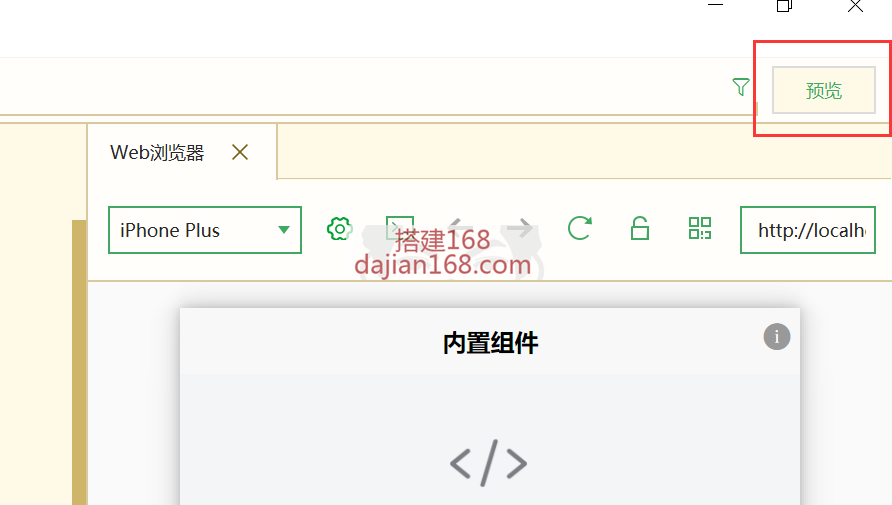
HBuilderX ships with a built-in browser that has the CORS check disabled. It is the easiest option for quick preview. You can open it from the toolbar preview button or choose Run → Run to Built-in Browser from the menu. Note that this only helps local debugging; production still needs a proper CORS or proxy setup.
Solution 2: Configure a Proxy in the Dev Server
uni-app projects are built on Vue, which uses webpack-dev-server under the hood. You can configure a proxy in vue.config.js or the equivalent uni-app configuration file:
module.exports = {
  devServer: {
    proxy: {
      '/api': {
        target: 'http://your-backend-server',
        changeOrigin: true,
        pathRewrite: {
          '^/api': ''
        }
      }
    }
  }
};
With this setup, a request from the front-end to /api/users is forwarded to http://your-backend-server/users. The browser sees the request as same-origin, and the back-end does not need to enable CORS for local development.
Solution 3: Use a Browser Extension for Temporary Debugging
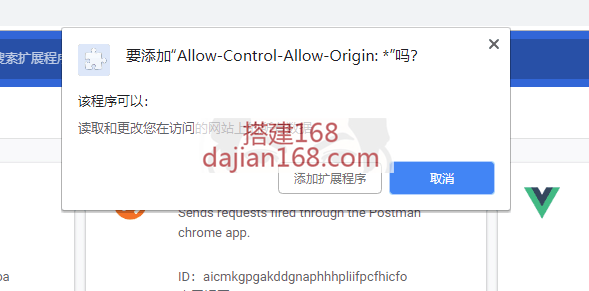
For quick local tests, a Chrome extension can override CORS headers. One commonly mentioned extension is Allow-Control-Allow-Origin: *. It is available on the Chrome Web Store, or it can be installed offline if the store is not accessible.
Important caveats:
- This extension only helps with simple requests and basic debugging. It does not reliably handle preflight
OPTIONSrequests. - It is not a production solution. Any deployment that crosses origins still needs server-side CORS or a proxy.
- Responses that violate the browser’s Cross-Origin Read Blocking (CORB) rules may still be blocked, even with the extension enabled.
Firefox has similar extensions, but keep in mind that Firefox can behave differently from Chrome on some CSS and JavaScript features, so a fix that works in Firefox may not prove anything about Chrome.
Understanding CORS vs. CORB
When debugging AJAX requests in Chrome, you may see two related errors:
- CORS (Cross-Origin Resource Sharing): the browser blocks the request because the server did not send the correct
Access-Control-Allow-Originheader. - CORB (Cross-Origin Read Blocking): the browser blocks reading the response because the response’s content type or headers look unsafe for cross-origin use.
CORB is not fixed by a simple CORS extension. The correct fix is to make sure the server returns the right content type and CORS headers, and to avoid returning sensitive resources that should not be read cross-origin.
Development vs. Production Checklist
| Scenario | Recommended approach | Notes |
|---|---|---|
| Local HBuilderX preview | Built-in browser | Fastest, but only for local testing |
| Local dev server with separate API | webpack-dev-server proxy | No back-end CORS changes needed |
| Production, same domain possible | Host front-end and API together | CORS is not needed at all |
| Production, separate domains | Server-side CORS or reverse proxy | Lock down allowed origins |
| UniCloud cloud functions | Domain whitelist in UniCloud console | Required for H5 calls |
Frequently Asked Questions
Why does CORS only happen in the browser?
CORS is a browser security policy. Native apps, mini-programs, and server-to-server requests do not enforce the same-origin rule in the same way. Only when JavaScript in a browser makes a request to a different origin does the browser check the CORS headers.
Can I fix CORS by changing the front-end code?
No. CORS is enforced by the browser, and the front-end cannot override it directly. The real fix is on the server side through CORS headers, a reverse proxy, or by serving both front-end and API from the same origin. During development, a local proxy or a browser extension can help with testing.
What is the difference between a simple request and a preflight request?
A simple request uses safe methods and headers such as GET or POST with Content-Type: text/plain. The browser sends it directly. A preflight request happens when the browser first sends an OPTIONS call to ask the server whether the actual request is allowed. Preflight failures usually mean the server is not handling OPTIONS correctly or is missing required headers.
Is using Access-Control-Allow-Origin: * safe?
It is acceptable for public, read-only APIs that do not use cookies or authentication. For anything that handles user data or credentials, use a specific allowed origin and set Access-Control-Allow-Credentials: true carefully. Never expose internal APIs with a wildcard.
Why do my requests work in HBuilderX but fail after deployment?
HBuilderX’s built-in browser disables CORS checks, so it hides the problem during development. Once the app is deployed to a real browser, normal CORS rules apply. Always test the production build in a standard browser and confirm the server-side CORS or proxy configuration is in place.
Disclaimer: This article is provided for technical education only. It is not investment, legal, or business advice. When applying CORS or proxy configurations, always follow security best practices and comply with local regulations and your organization’s policies.
-
 Alipay QR Code Scan
-
 WeChat Scan Pay