Java Super Signature System Setup Guide: Open-source APP Super Signing Source Code Deployment Tutorial
Java Super Signature System Setup Guide: Open-source APP Super Signing Source Code Deployment Tutorial
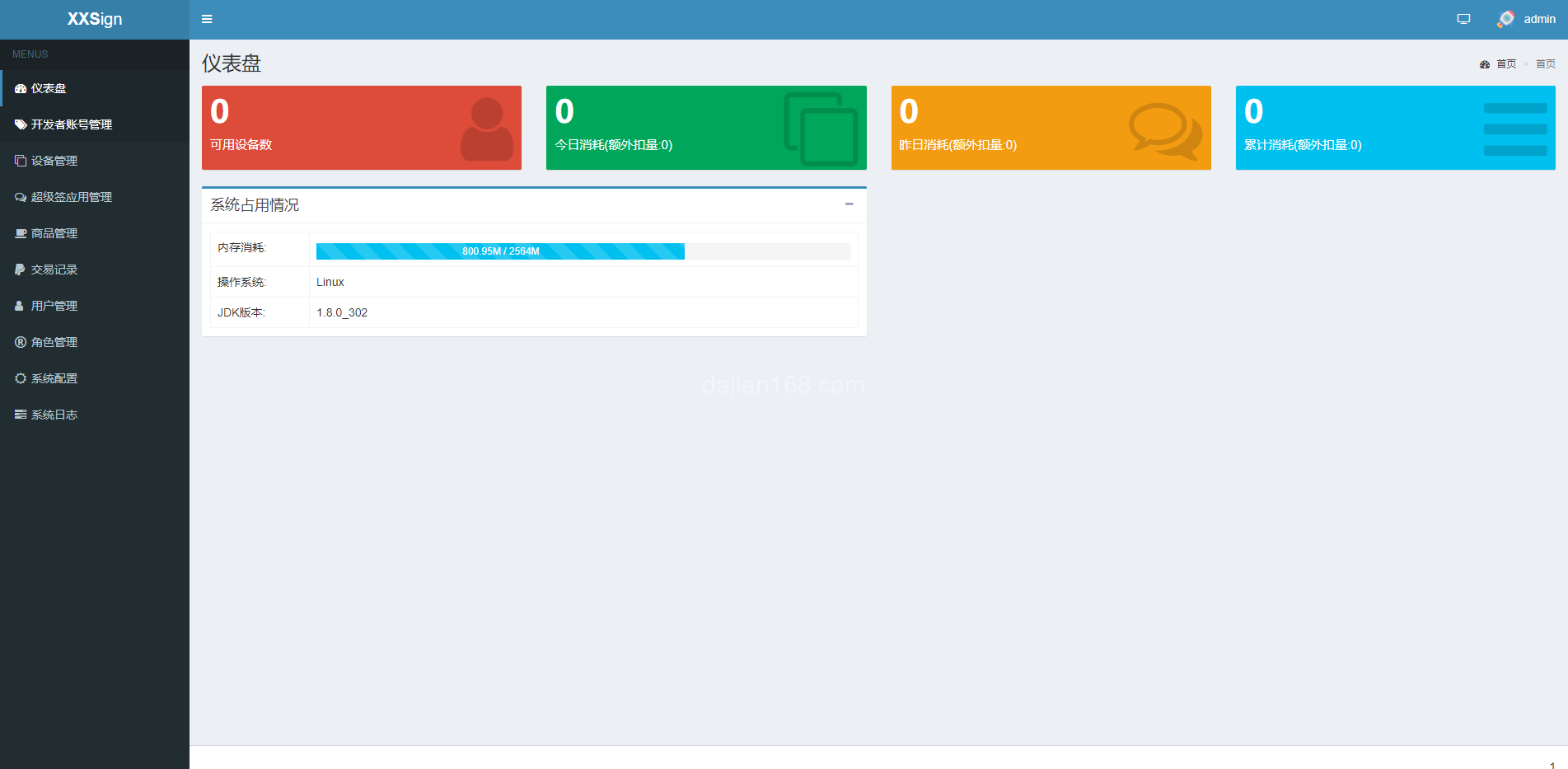
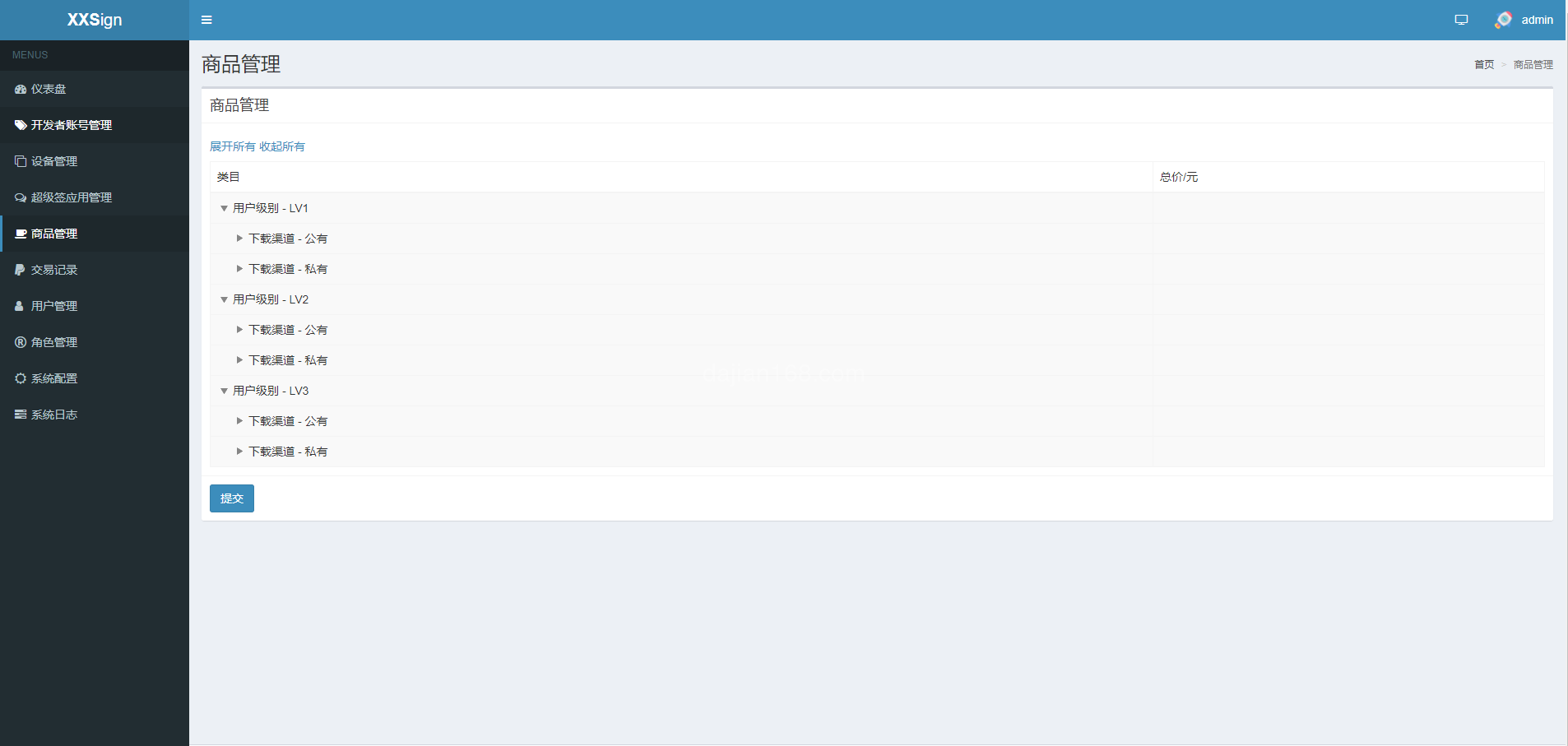
Some time ago, a friend who runs APP distribution asked me to help deploy a super signature system. The requirements were open-source, written in Java, and had to support both iOS enterprise signing and super signing modes. After searching around, I found this open-source Java super signature system that met the needs. I am recording the entire setup process to save time for those who need it.
1. System Functions and Application Scenarios
This super signature system mainly solves the problem of iOS APP beta distribution. Because Apple’s official TestFlight review is quite strict, many APPs cannot be listed, so super signing has become an alternative solution for many development teams. The main system functions include:
- iOS Enterprise Signing: Uses enterprise certificates to re-sign IPA packages. Users do not need to jailbreak when installing, just trust the certificate directly.
- iOS Super Signing: Uses the Ad Hoc distribution mode of personal developer accounts, signing each device individually, with higher stability than enterprise signing.
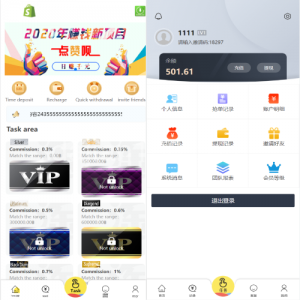
- APP Distribution Management: After uploading IPA packages, automatically generates download links and QR codes, supporting version management and update prompts.
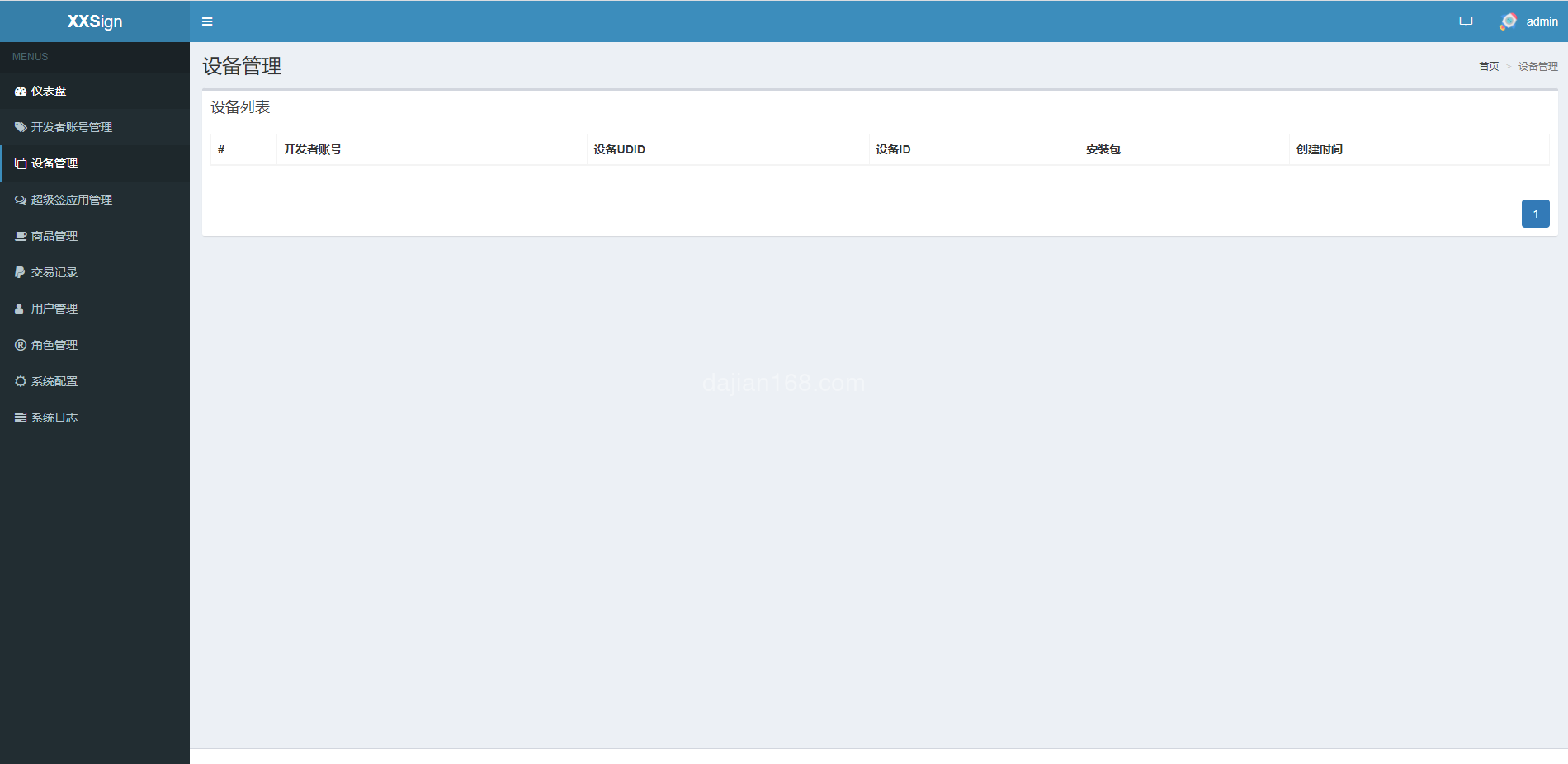
- User Device Management: Records each user’s device UDID. In super signing mode, UDIDs need to be collected in advance for signing.
2. Environment Preparation Before Setup
This system is developed based on Java Spring Boot. Before deployment, you need to prepare the following environment:
- Server: Recommend at least 4 cores and 8GB RAM, because the signing process is quite CPU-intensive.
- Operating System: CentOS 7+ or Ubuntu 20.04+
- Java Environment: JDK 1.8 or OpenJDK 11
- Database: MySQL 5.7+, need to create database and user in advance
- Nginx: Used for reverse proxy and static resource services
- SSL Certificate: HTTPS is mandatory. iOS download and installation requires HTTPS.
- Domain: Needs filing. Recommend preparing two domains, one for management backend and one for download distribution.
3. Detailed Deployment Steps
The entire deployment process took me about half a day. Here are the detailed steps:
3.1 Database Initialization
First create the database, select utf8mb4 for character set, and utf8mb4_general_ci for collation. Then import the SQL file that comes with the project, checking whether the table structure is complete. The first time I imported, I missed a log table, causing signature records to be unqueryable later.
3.2 Configuration File Modification
Mainly modify several key configurations in the application.yml file:
- Database connection address, username, and password
- File upload path, recommend using an independent disk mount because IPA packages are relatively large
- Signature certificate path, enterprise signing needs .p12 format certificate files
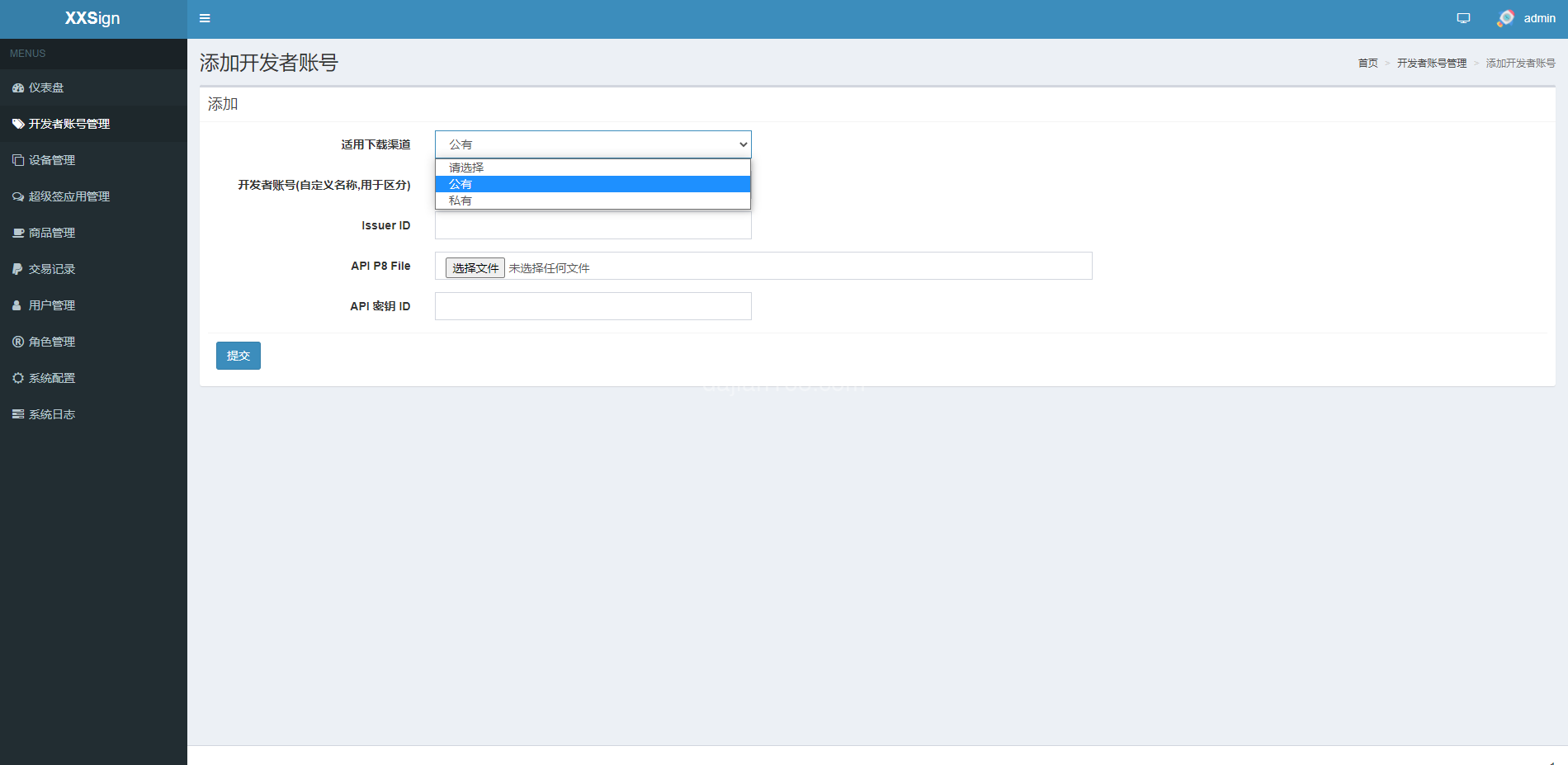
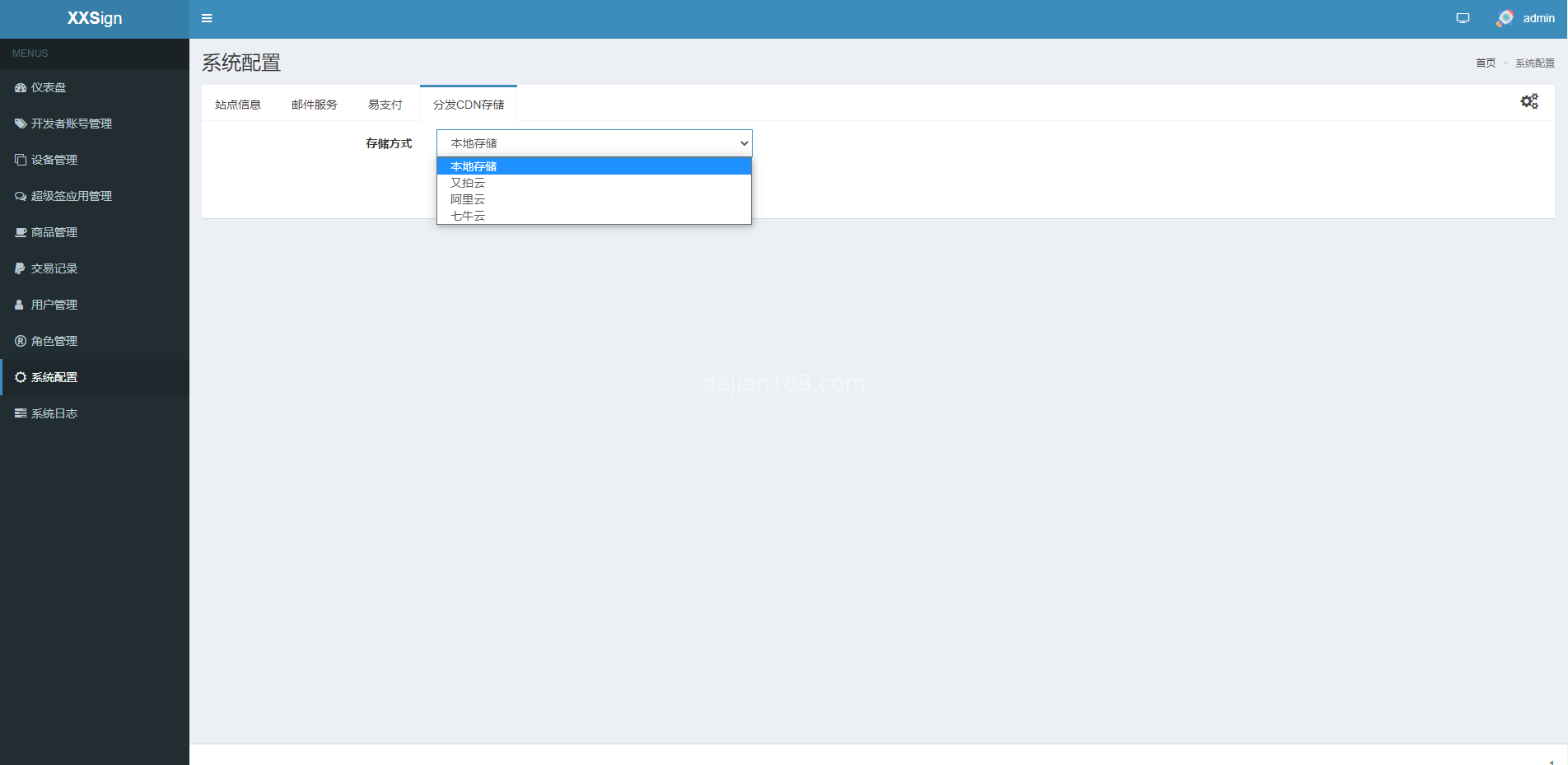
- Super signing developer account information, including Team ID and certificate password
3.3 Nginx Reverse Proxy Configuration
Management backend and download pages are configured separately. The download domain needs MIME type configuration to ensure .plist files can be parsed normally:
location ~* \.plist$ {
    add_header Content-Type application/xml;
}
4. Signing Process and Notes
After deployment is complete, the signing process is as follows:
- Upload IPA package to the system
- Select signing mode (enterprise signing or super signing)
- System calls command-line tools to re-sign the IPA
- Generate new download links and QR codes
- Users scan code to install, enterprise signing requires trusting the certificate
There are several pitfalls to note:
- Enterprise certificates are easily revoked by Apple. Recommend preparing multiple backup certificates.
- Super signing has a 100 device limit per account. Need multiple developer accounts for rotation.
- IPA package Bundle ID must match the certificate, otherwise signing will fail.
- Signed packages need to be recompressed, otherwise installation will report errors after download.
Important Notice: Super signing involves Apple’s developer agreement and carries certain compliance risks. It is recommended to only use for internal enterprise testing and distribution, not for public commercial use. Once an enterprise signing certificate is revoked, all installed APPs will be unable to open. Be sure to inform users of the risks in advance.
5. FAQ Frequently Asked Questions
Q1: What is the difference between enterprise signing and super signing?
Enterprise signing uses enterprise developer certificates, with no device limit, but certificates are easily revoked by Apple. Super signing uses personal developer account signing, signing each device individually, with better stability, but each account can only sign 100 devices.
Q2: Can signed APPs be listed on the App Store?
No. Super signing and enterprise signing are both for beta distribution, which is different from App Store release signing. If you want to list on the App Store, you need to repackage with a distribution certificate.
Q3: Does the system support Android APPs?
This system is mainly for iOS. Android APKs do not require signing to install. If you want to do Android distribution, you only need to upload APK files to generate download links, without needing signing steps.
Q4: How fast is the signing speed?
Depends on server configuration and IPA package size. In my tests, a 50MB IPA package takes about 10-20 seconds for enterprise signing, and 30-60 seconds for super signing because each device needs to be processed individually. For concurrent signing, it is recommended to use a higher configuration server.
#SuperSignature #iOSSigning #EnterpriseSigning #APPDistribution #JavaSourceCode
-
 Alipay QR Code Scan
-
 WeChat Scan Pay