Minimalist Image Hosting Source Code: Single-File, Zero-Dependency Upload System
This minimalist image hosting script packs the entire front end — HTML, CSS, and JS — into one index.html file with no build step and zero npm dependencies. Open it in a browser and it runs. The back end only needs one proxy endpoint with a matching token, which makes this source code download at dajian168 one of the easiest image-hosting projects to get online. Below I cover the three features I actually use daily, plus deployment notes.
Top 3 Features Worth Deploying For
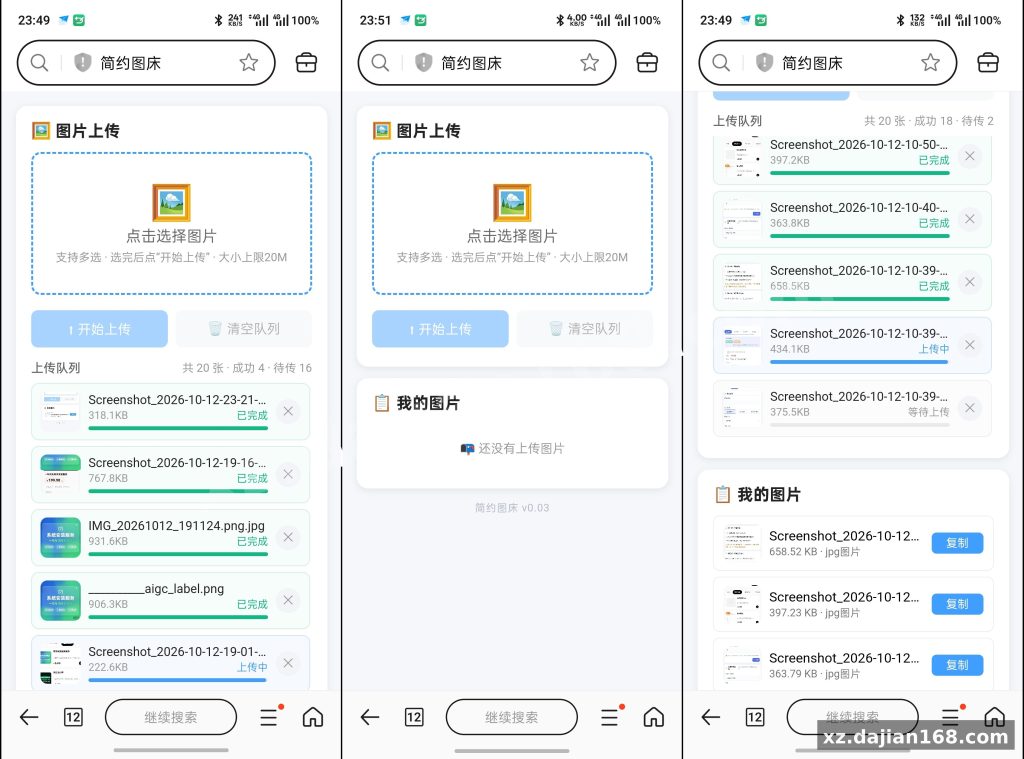
The upload queue is the real selling point — it handles failure gracefully. When I deployed this, the first thing I tested was interrupting uploads, and it behaved well:
- Sequential queue with retry: files upload one by one; failed items stay in the queue and re-clicking “Start Upload” retries all waiting/failed entries automatically.
- Duplicate detection: files with identical name + size + modification time are silently ignored, saving storage.
- Real preview: pinch-to-zoom up to 50×, double-tap toggles 1×/2.5×, desktop uses scroll-wheel zoom; video and audio play inline.
- Per-item progress bars, one-click copy of direct links, and 20-items-per-page reverse-chronological listing with a “N total” counter.
Takeaway: if your users upload from phones on flaky networks, the queue-retry design alone justifies this over a bare upload form.
Deployment: What the Back End Must Provide
The front end does not validate file size — your proxy does. There is a setting in the backend config where you set the max upload size (up to 20 MB per file in the shared 100 GB scenario); oversized files fail with the error shown directly in the queue row. Checklist before launch:
- Deploy the backend proxy and confirm the upload URL and token/password match the front-end config.
- Set server-side limits: 20 MB max per file, total quota 100 GB shared across users.
- Enable HTTPS if possible — clipboard copy uses
navigator.clipboard, which requires a secure context; plain HTTP falls back to theexecCommandworkaround. - Test one upload over HTTP and one over HTTPS to verify both copy-link paths work.
Pitfall: the upload input is locked to accept="image/*". The preview/download logic is already generic, so if you want video/audio hosting, relax the accept attribute and the backend filter — no other code changes needed.
Use Cases and Compatibility
Best suited for personal or small-team image hosting, not enterprise CDN replacement. In testing I found mobile-first UI holds up well: touch gestures (pinch zoom, ~90px pull-down to close the panel) work on iOS Safari and Android Chrome; desktop Chrome/Edge/Firefox are supported as long as the browser has ES6, fetch, and Promise. Typical uses:
- Blog/forum attachment hosting with direct-link copying
- Shared community storage (the 100 GB pool / 20 MB per-file cap fits this)
- A lightweight alternative to heavy cloud scripts — this one file is the whole front end
Judging criterion: if you need per-user quotas or auth, add it in the backend proxy; the front end assumes a trusted shared environment.
FAQ
Q: Why does upload fail or do nothing?
A: Check that the backend proxy is deployed and the address/token match. Failed items remain in the queue — fix the issue and click “Start Upload” again to retry.
Q: Why do thumbnails show colored icons instead of images?
A: That is the automatic fallback when a thumbnail fails to load. Verify the direct link is publicly accessible.
Q: Can I upload videos or audio?
A: Not by default — the picker restricts to images. Remove the accept="image/*" limit and open the backend filter, and playback already works.
Original Reference
Original title: 简约图床共享100G最大上传20M_搭建168
Original excerpt:
简介:
简约图床 · 介绍与用法
一、这是什么
一个单文件、零依赖的轻量图床页面:HTML + CSS + JS 全部写在一个 index.html 里,
无需构建、无需安装任何依赖,保存后用浏览器打开即用。界面为移动端优先设计,
桌面端会自动居中显示。
上传就能用,直接代码管托也行!
二、功能一览
上传:点击选择、支持多选追加、上传队列管理、实时进度条、一张一张顺序上传、
失败自动可重试、重复文件自动忽略
队列:每条显示缩略图/类型图标、文件名、大小、状态(等待上传/上传中/已完成/
上传失败)、进度条,可单条移除或一键清空
列表:按上传时间倒序,每页 20 条分页,缩略图加载失败自动回退为类型图标,
一键复制直链
底部操作面板:点击条目弹出,展示大小、类型、上传时间,支持预览、下载、复制链接
预览:图片支持双指缩放(最高 50 倍)、拖动、双击切换 1 倍/2.5 倍,
桌面端支持滚轮缩放;视频、音频内嵌播放
其他:Toast 提示、下拉手势关闭面板、点遮罩关闭、复制链接全平台兼容
三、使用方法
上传图片
点击虚线框选择图片,可多选;之后可再次点击追加。重复文件
(文件名+大小+修改时间全同)自动忽略。
点「开始上传」,队列顺序一张张上传,上传中按钮禁用防重复提交。
每条队列可点「✕」移除(上传中的不行);「清空队列」一次性清空(上传中不行)。
失败会显示原因;再点一次「开始上
Original screenshots:
Disclaimer
⚠️ This article is for educational research and technical exchange only. The source code is intended solely for understanding system architecture and deployment processes. Do not use it for illegal purposes. Any commercial operation is unrelated to the author.